
The Microsoft Graph Toolkit (MGT) is a collection of reusable, framework-agnostic components and authentication providers for accessing and working with Microsoft Graph. The components are fully functional right out of the box, with built in providers that authenticate with and fetch data from Microsoft Graph.
MGT has a nice and simple integration with SharePoint Framework with just one line of code:
Providers.globalProvider = new SharePointProvider(this.context);
However, MGT supports other provider types as well. Like Proxy provider. In some cases, it makes sense to use the Proxy provider inside your SharePoint Framework solution instead of the SharePointProvider. Here is why:
- you have a backend API that talks to MS Graph with on-behalf-of (OBO) flow. You don't use JS code to talk to MS Graph and rely solely on the backend
- you don't want to maintain many "webApiPermissionRequests" entries inside package-solution.json, because every new permission requires re-deployment
If the above is true for you, then you can implement the Proxy provider for MGT instead of SharePointProvider.
The source code for this sample is available at GitHub here.
More...

What we're going to build in this post:
- Azure web job, which is triggered by a queue message from a custom site template (previously known as site design). The job uses PnP Framework to provision a new site based on the PnP template.
- MS Teams bot, which pushes notifications to the configured channel about the provisioning state.
As usual, for such "code-behind posts", the sources are available under GitHub here.
High-level overview
This is how the approximate solution looks like:
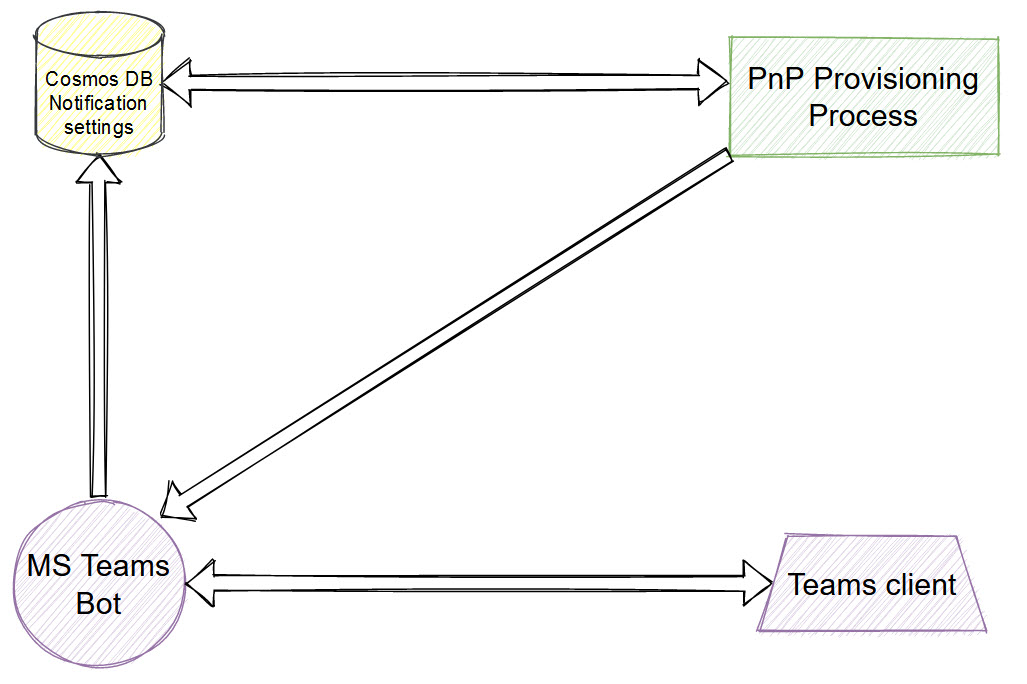
Cosmos database contains notification settings. It includes channel id (the channel, which receives notifications about provisioning state), service URL (we use this URL to send proactive messages to, can be obtained from bot activity), and tenant id (optional). PnP provisioning reads the database and proactively pushes notifications using bot credentials to all configured channels. More...
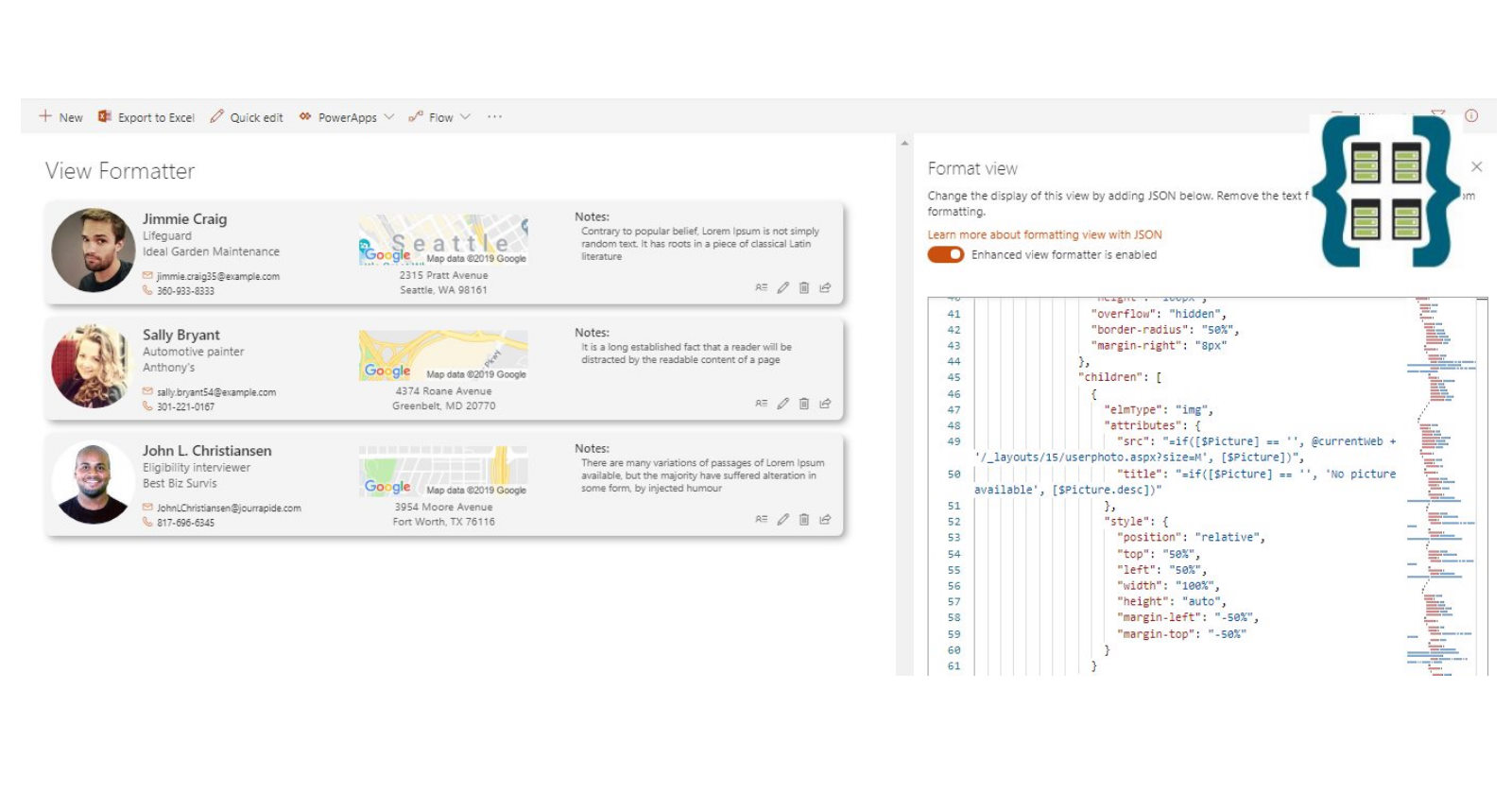
SP Formatter is a Chromium (supports Chrome and Edge) extension, which makes SharePoint Column, View and Form Layout JSON formatting a lot easier and faster.
The most notable features:
- Live Preview as you type
- Rich Intellisense (suggestions) based on JSON schema, including CSS styles, "@" tokens (@currentField, etc.), "$" (to insert field values)
- VSCode integration mode - see the live preview of your formatting JSON as you type in VSCode
- Easy and fun to use
Recently SP Formatter was updated and received Form Layouts support. More...

I had a flow, which triggers by item added event in a SharePoint list. The flow relies on the order of items added to a list, i.e. it processes items using the queue approach. However, when items were added using a batch approach, the order is not preserved.
You can fix it by introducing an "orchestration" flow and a field in the list. More...

As a developer, how many times have you had a need to test different Microsoft 365 APIs? For me, this is a fairly frequent task. Most often it's SharePoint REST API or MS Graph. Every time you should think about the authentication part because all of those APIs are protected. With MS Graph explorer it's simple, however, you cannot test any other API except the MS Graph. Also, sometimes you have access to different customers environments or tenants and it's not that simple to easily switch between them, handle authentication, and so on.
I ended up testing everything in Postman using a generic approach, which works for any Azure AD-protected resource. This approach uses OAuth2 Auth code grant flow (or Resource Owner Password Credential flow, ROPC, also covered in this post), it stores tokens and automatically renews access tokens for a resource if this particular token is expired. This approach involves custom Azure AD app registration for Postman, Postman's environments feature, environment and collection-level variables, pre-request scripts.
Read further below to find out how I configured it. My approach is not a silver bullet, but at least it works for me. You can grab some ideas and adapt them to your requirements. More...

Last week Microsoft announced SPFx 1.13. Corresponding spfx-fast-serve modules were also updated to support the latest SPFx. A few notable changes were introduced for spfx-fast-serve as well. More...

Sometimes you have a need to call an Azure Function with Azure AD enabled authentication from Logic App or from another Function or Azure Web App. For example, you have an API for your SPFx solution and also have a requirement to build a Logic App, which uses some methods from the web API. In that case, you should somehow perform the authentication to call your Azure AD protected function. You can easily solve this problem with Managed Identity.
Let's see how it works in practice. More...

In June 2020, a .NET Standard version of SharePoint CSOM was released. It means that now we can build projects for SharePoint, that target multiple platforms. At the beginning of 2021, a .NET Standard version of PnP-Sites-Core was also released (with a brand new name PnP.Framework and an updated codebase). However, there are some limitations in the .NET Standard version of SharePoint CSOM. Especially the lack of Remote Event Receivers (RER). The whole namespace was dropped. In some cases, you cannot replace RER with Webhooks without loss of functionality. Sometimes you just need RER or you're upgrading your code and cannot migrate RERs to webhook, since that's expensive.
So, let's bring support of Remote Event Receivers back to .NET Core \ .NET 5+.
The source code sample for this blog post is available at GitHub here (the master branch contains code for .NET Core, if you're looking .NET 5 sample, use net5 branch). More...

A few weeks ago spfx-fast-serve received an interesting update:
- hot module replacement (known as HMR)
Read further to learn more about how it works. More...